Set the title and description for a website page, and choose the text used when it is shared. For an individual blog post, use the post's SEO tab instead; see Set search information.
Open the page's SEO settings
- Open the page-name menu and select the page you want to update.
- Select Edit in the top toolbar.
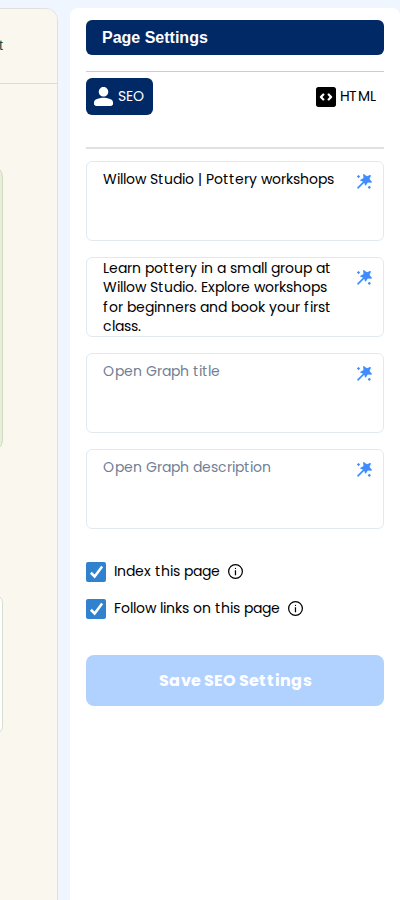
- In the right panel, open Page Settings, then SEO. If an element is selected, use the back arrow labelled Page Settings first.
Write the title and description
- In Page title, enter a specific name for the page, such as Pottery workshops | Willow Studio.
- In Meta description, summarize what someone will find on this page. Use the actual services or information it contains.
- Complete Open Graph title and Open Graph description if you want separate wording for social sharing.
- Select Save SEO Settings and wait for the saved confirmation.
The generate control beside a field can suggest wording. Review generated text for accuracy before saving.
Review indexing options
Index this page controls whether the page allows search-engine indexing. Follow links on this page controls whether it allows search engines to follow its links. Keep these enabled for a normal public page you want people to discover. These controls do not password-protect a page.
Publish and check
- Publish the website to put the saved settings on the public page.
- Open the public page and check its browser-tab title.
- Allow search engines time to revisit the page. A saved title or description is not a guarantee of the exact wording shown in search results.
Google explains how it selects title links and search snippets. Write distinct, descriptive text for each page rather than repeating the same title everywhere.