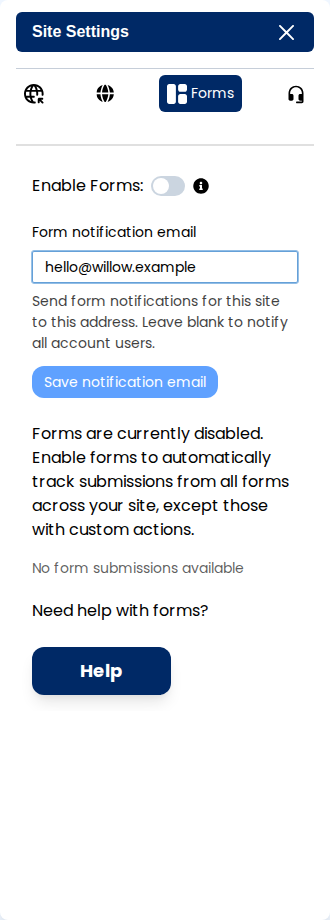
Choose one email address to receive this site's form notifications, or leave the setting blank to notify all account users. This setting changes the recipients; it does not enable form collection.
Open notification settings
- Open your site and select Site Settings in the top toolbar.
- Open the Forms tab.
- Find Form notification email below Enable Forms.
Choose who receives notifications
- Enter one address in Form notification email to send notifications to that inbox. To use the account-wide default, clear the field instead.
- Select Save notification email.
- Wait for the Notification email saved confirmation.
Check delivery
- Follow Collect form submissions to enable collection and publish the form.
- Send a test enquiry from the public website.
- Check that the enquiry appears in Siteboon's Forms panel, then check the receiving inbox and its spam folder.
If the enquiry is visible in Siteboon but no email arrives, recheck the saved receiving address. If the enquiry is absent from Siteboon too, check collection and the form's action before changing email settings.