Use version history to inspect an earlier page or blog post and restore it as a new version. Opening a version preview does not change your current work.
Open version history
- Open the page or blog post you want to inspect.
- Save any work you want to keep and wait for saving to finish.
- Select the clock icon labelled Previous Versions in the top toolbar.
Compare saved versions
- In Previous versions, select a version. Use its number and change description to identify it.
- Review the Preview tab. The version marked Current is the latest saved version.
- Open Conversation if you want to review the messages associated with that version.
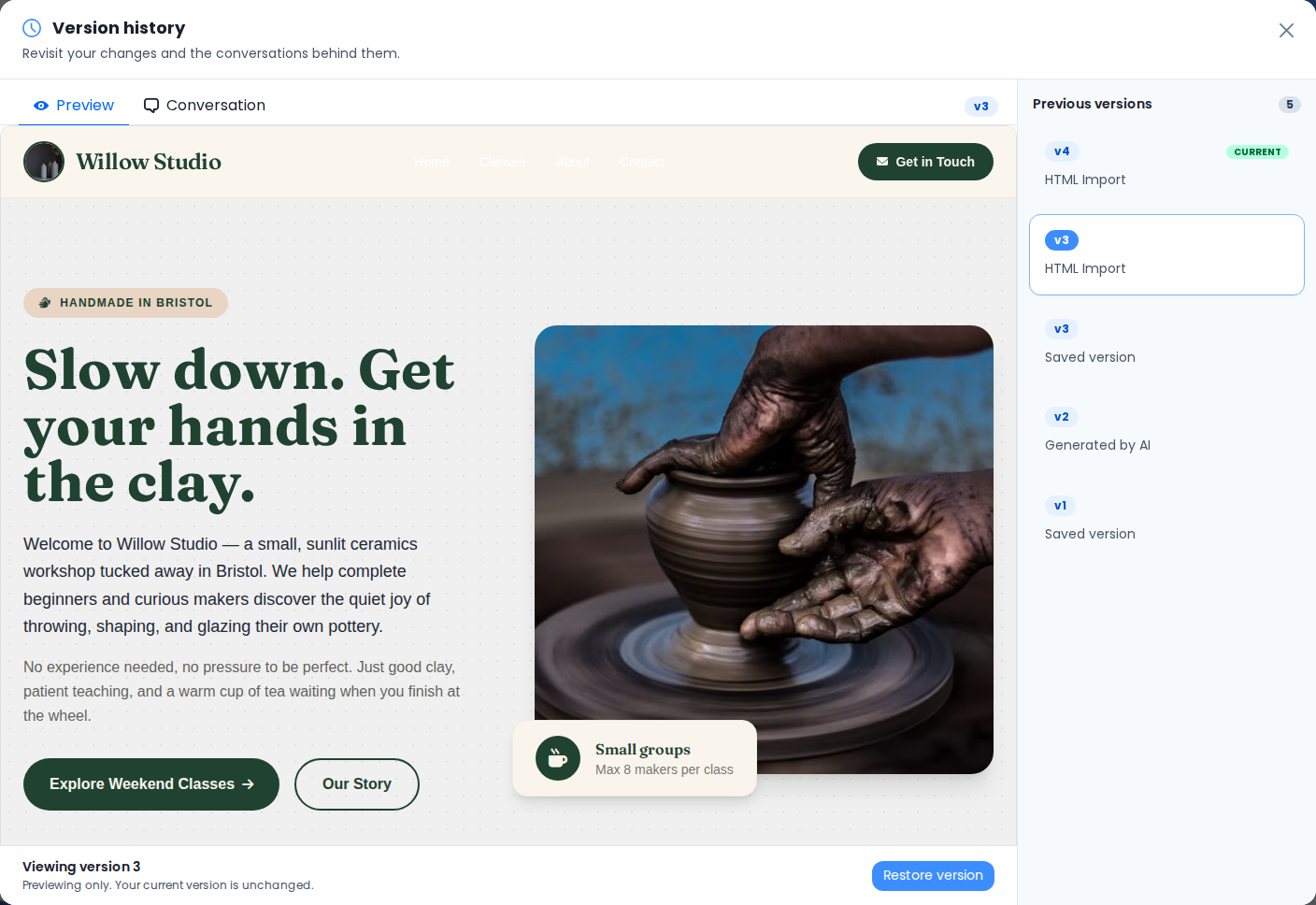
Restore the selected version
- With the intended older version selected, choose Restore version.
- Read the confirmation and confirm the restore only if that is the version you want.
- Wait for Version restored, then review the page or post in the editor.
Restoring creates a new version from the selected saved state. Earlier versions remain in history. This is different from Undo, which steps back through changes in the current editing session.
Update the public website
- Check the restored content, links, and images.
- For a blog post, check its details and publication status as well.
- Publish the website if you want the restored version to appear on your public domain.