Publishing copies your saved website to its public domain. It includes the latest version of every page and blog posts marked published, so review the whole site before you publish.
Before you publish
- Save the changes you want visitors to see, and wait for saving to finish.
- Review the site at desktop and mobile sizes. Check links, images, contact details, and any placeholder text.
- For blog posts, save the body and details, then mark each ready post as Published in its post panel.
- Have a domain you own, or choose a domain to purchase through Siteboon's domain settings.
Open Publish website
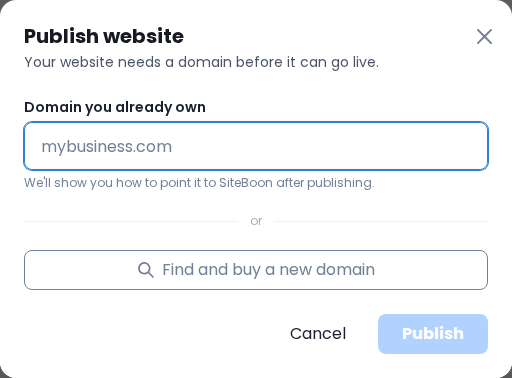
Select Publish in the top-right website toolbar. This opens the Publish website dialog.
If the site has no domain
Enter a domain in Domain you already own, such as mybusiness.com. Enter the domain name without a page path. If you need a domain, Find and buy a new domain opens domain settings; purchasing is a separate step.
If the site already has a domain
Check the domain shown in the dialog. Change domain opens domain settings. The publish action includes every page's latest version, blog posts marked published, forms, SEO settings, and the favicon.
Publish and connect the domain
- Check the domain, then select Publish inside the dialog.
- Wait for the operation to finish. If Siteboon reports a DNS setup requirement, open the linked domain settings and use the records shown for your domain.
- If your domain is managed elsewhere, add the specified records at that provider. Use the exact values Siteboon displays; do not copy DNS values from another website's setup.
Deploying website files and connecting a domain are separate parts of going live. A website can be deployed while its domain still needs DNS setup. Visitors can reach it once the domain points to Siteboon.
Check the public website
Open https://your-domain in a new browser tab. Check the home page, another page if you have one, and a published blog post. Make sure you are viewing the public domain rather than the editor preview.
After future edits, publish again to update the public website. A saved editor change is not proof that visitors can already see it.
If publishing reports a problem
| What happens | Next action |
|---|---|
| The domain is rejected | Check the spelling and enter the domain name, without https:// or a page path. |
| DNS setup is needed | Open domain settings and compare the required records with the records at your domain provider. |
| A DNS error appears after publishing | Check the public website before retrying: its files may already be deployed. Record the error and domain if you need support. |
| A blog post is missing | Confirm that the post is marked published, then publish the website again. |