Use AI to request a change in words, or use the visual editor to work directly on a page. Saved changes stay in the editor until you publish the website.
Open the right page
- Open the website from Your Sites.
- At the top of the editor, open the menu showing the current page name and choose the page you want to change.
- Choose AI or Edit in the top toolbar.
If you are changing an individual blog article, open its post title instead and use the blog post editor. Archive Layout and Post Layout control shared blog designs.
Request a change with AI
- Select AI in the top toolbar.
- In Ask AI, name the page section, the change, and anything you want to keep.
- Select the send arrow and wait for the response to finish.
- Review the changed page before sending a follow-up.
On the Home page, change the main heading to “Pottery classes in Bristol.” Keep the existing colors, images, and section layout.
Review the result after the response finishes. For a follow-up, refer to the part that still needs adjustment. Avoid sending several unrelated changes at once; a focused request is easier to check.
If the chat reports an error or a usage limit, the request has not been confirmed as complete. Check the page and the error before retrying. You can continue with visual editing while an AI request is unavailable.
Edit directly on the canvas
Select Edit in the top toolbar. The left panel provides Chat, Blocks, and Layers. Select an element in the page to open its editing controls on the right.
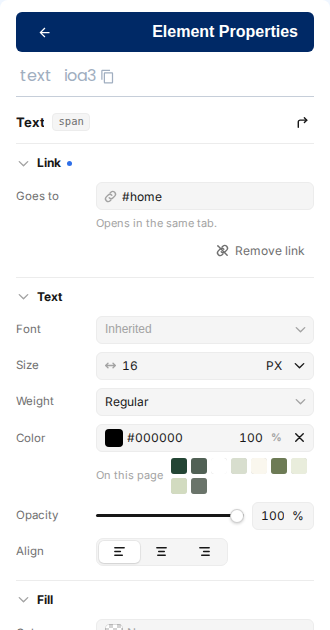
Change text
- Double-click the text on the canvas.
- Select the words to replace and type the new copy.
- Click outside the text to finish.
- Select the text element to adjust its typography and spacing in the right panel.
Add content
- Open Blocks on the left.
- Drag a text, image, button, heading, or layout block into the page.
- Select the new block and replace its sample content.
Select a nested element
Open Layers if an element is difficult to select on the canvas. Use the layer tree to select the intended element or its container before changing spacing or layout. A container change can affect several elements inside it.
Check desktop, tablet, and mobile
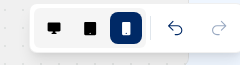
Use the Desktop, Tablet, and Mobile controls below the canvas. Check line breaks, navigation, button sizes, and whether images fit. A layout that works on a wide screen can need adjustment on a phone.
The Preview on a new tab control in the top toolbar opens a preview without the editing panels. Use it to check how links and page content behave outside the editing view.
Wait for saving, then publish
Visual edits save automatically. Watch the cloud icon in the top toolbar and wait until its label is All changes saved before leaving the page. Undo and Redo are beside the device controls for changes in the editing session.
To recover an older saved state, follow Restore a saved version.
When the site is ready, follow Publish your website. Publishing updates the latest version of every page, so check other pending changes too.