Create the first page of a website by describing your business, the content you need, and the design you want. Siteboon collects those details in a chat, then generates a site you can review and edit.
Before you start
Sign in at app.siteboon.ai and complete account setup. Have your business name, the purpose of the site, and an outline of its content ready. You do not need a domain to create and edit the site; you will need one when you publish.
Start from Your Sites
- On Your Sites, select Add New Site.
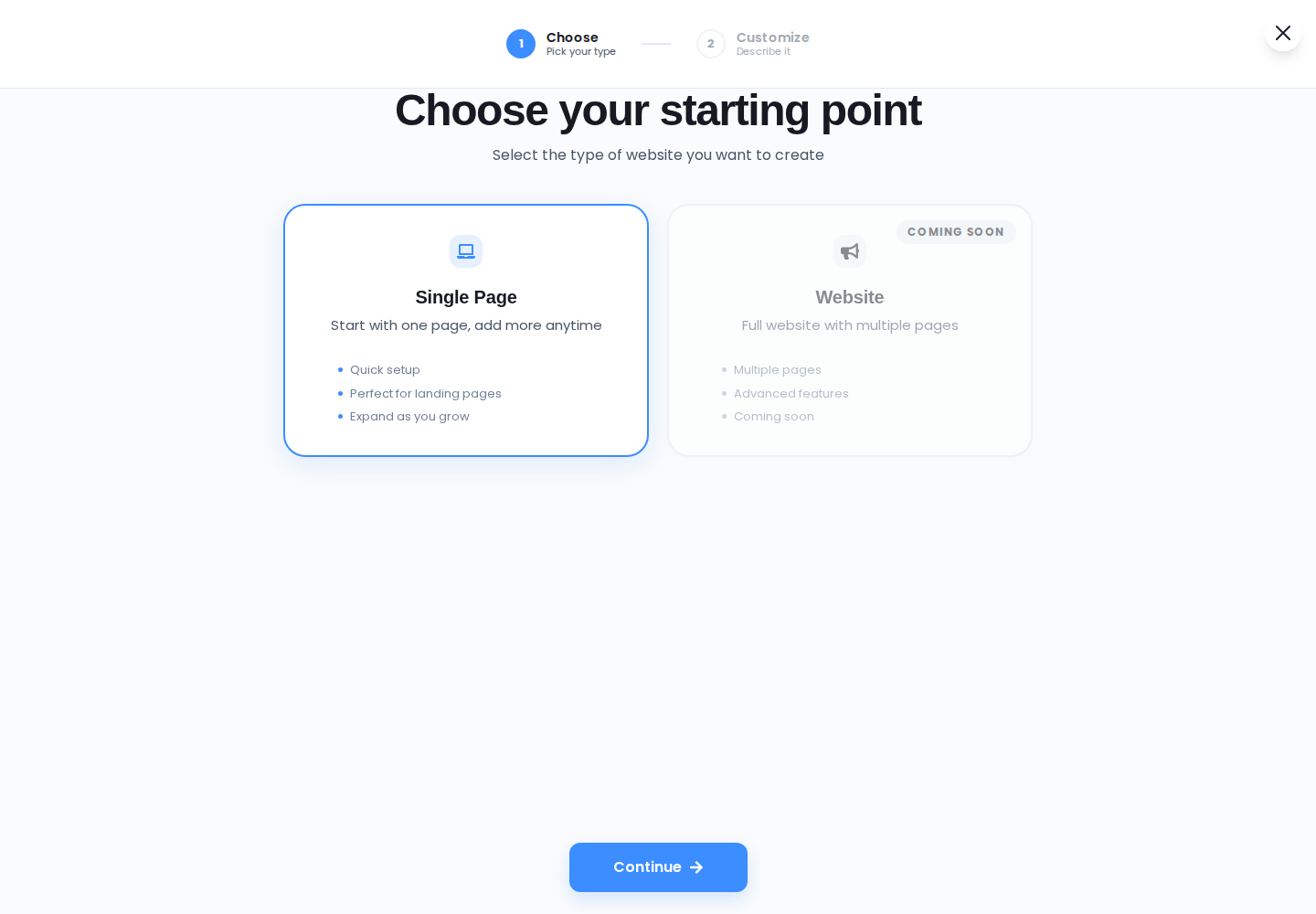
- Choose Single Page, then Continue. This starts with one page; you can add pages later. The multi-page Website option is currently marked Coming soon.
Describe the site and send your message
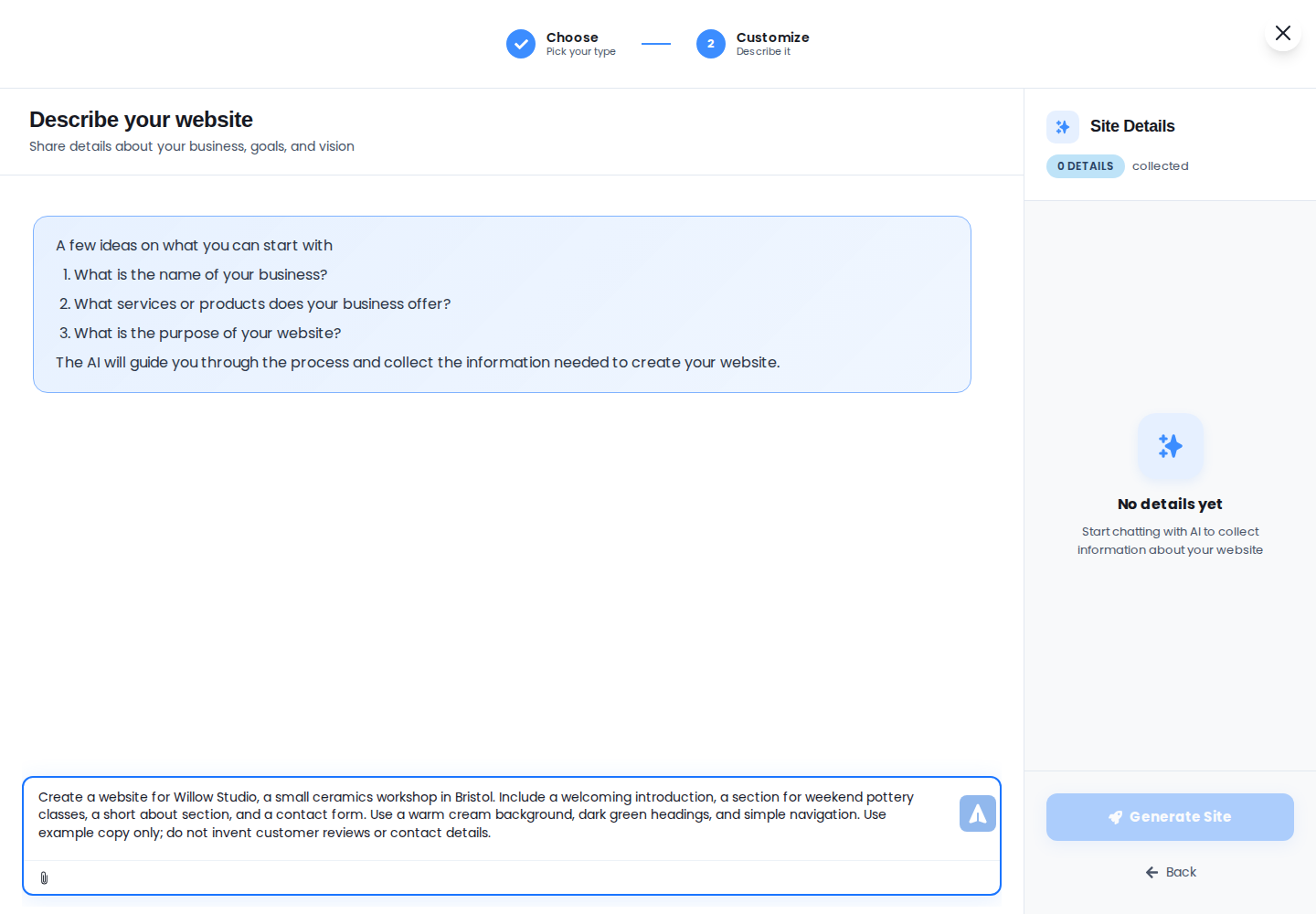
In Describe your website, type a brief covering:
- Your business and audience: what you offer and who the site is for.
- The visitor's next action: for example, contact you, view your work, or ask about a class.
- Sections: such as an introduction, services, about, and contact.
- Design preferences: colors, the overall appearance, and any reference material.
For example:
Create a website for Willow Studio, a small ceramics workshop in Bristol. Include an introduction, weekend pottery classes, a short about section, and a contact form. Use a cream background and dark green headings. Use placeholder copy where information is missing; do not invent customer reviews or contact details.
Select the arrow button labelled Send message beside the text box. Typing the brief alone does not send it. You can also use Ctrl + Enter on Windows or Linux, or Command + Enter on Mac.
Review Site Details
- Read the response and open the Site Details panel on the right.
- Check the title, purpose, colors, sections, and features.
- If anything is missing or incorrect, send a message with the correction before generating the site.
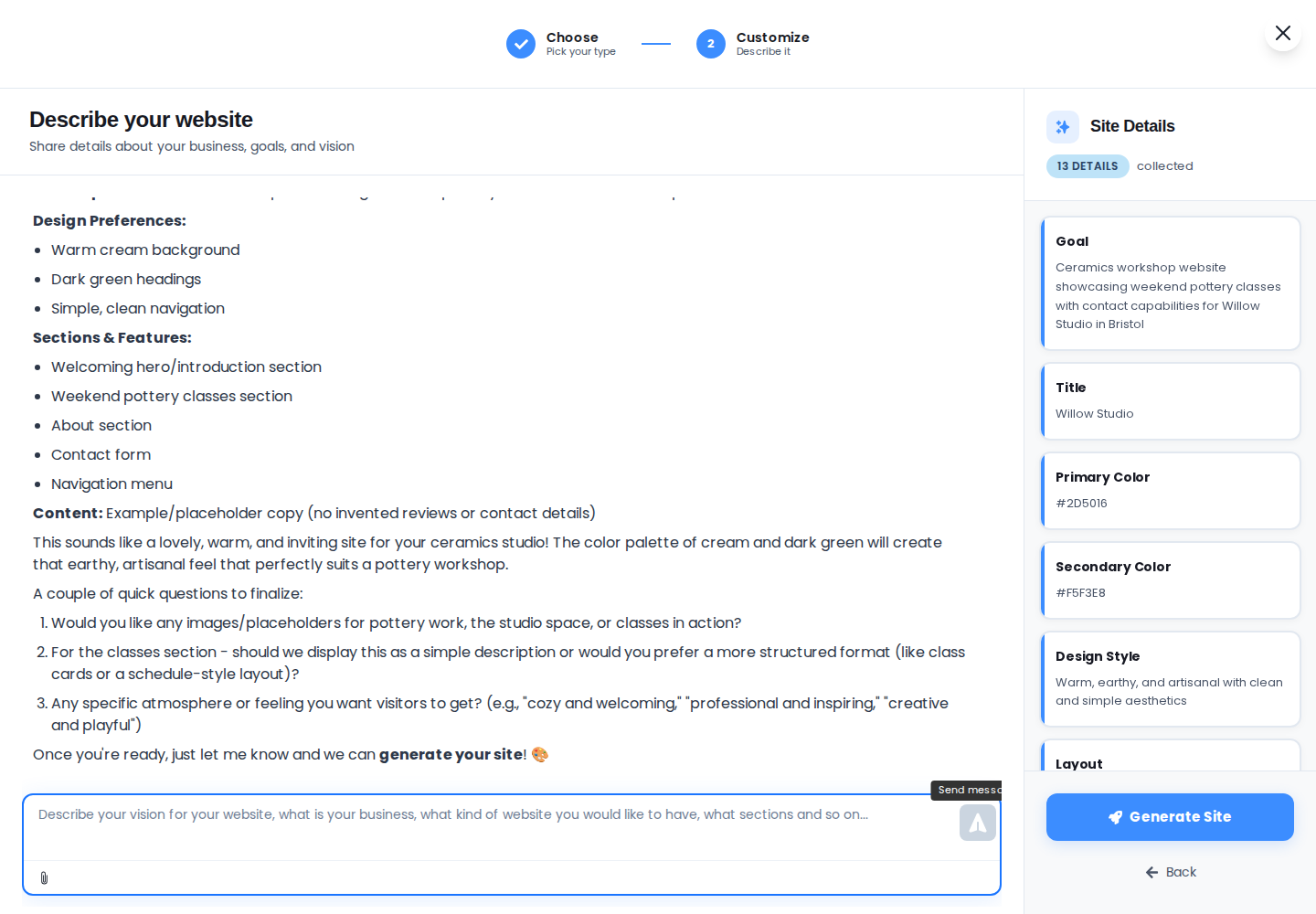
If Generate Site is unavailable and the panel says No details yet, check that you sent your message and wait for the response. If a visible error appears, resolve it before continuing.
Generate and review the result
- Select Generate Site.
- Wait for generation to finish. The editor may show partial results while work is still in progress.
- Review the generated page. Check business facts, links, images, and any placeholder content before making it public.
The generated page is a starting draft. Use Edit for direct changes or AI to request a revision. The preview icon beside those controls opens the page in a new tab.
To return later, open the site from Your Sites. If you left before completing generation, a Continue Setup action may appear instead of the editor action.