Add a blog to an existing Siteboon website and choose where its posts appear. Blog setup creates a listing page, a shared post design, and a sample draft. It does not make the blog public.
Before you start
Open a website you can edit. If you have not created one yet, follow Create your first website. You can set up a blog before connecting a domain.
Open blog setup
- At the top of the editor, open the menu showing the current page name, such as Home.
- Select Enable Blog.
If the menu already has a Blog group with layouts and posts, the blog is enabled. Open an existing post or select + Add blog post instead.
Choose the blog address
In the Enable Blog dialog, set Blog URL. This is a path within your website, not a separate domain. The default is /blog. For example, a post with the slug first-pottery-class would appear at yourdomain.com/blog/first-pottery-class.
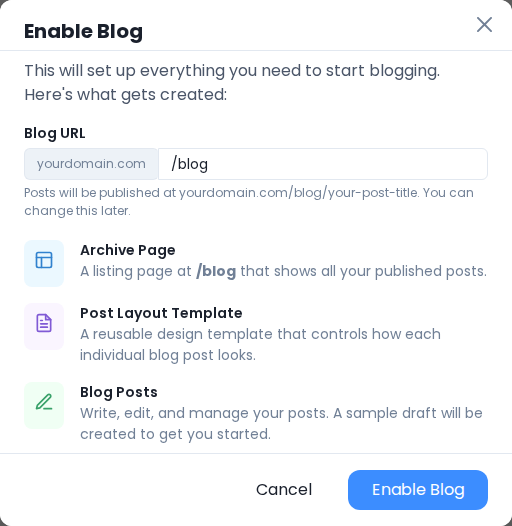
Choose an address you intend to keep. Changing it later changes the public addresses of the archive and its posts after the next website publish; links using the old address can stop working.
Select Enable Blog to create the blog. Siteboon opens a sample draft so you can start writing.
Understand the three parts of a blog
| Open from the page menu | Use it to change |
|---|---|
| Archive Layout | The listing page visitors use to browse posts, including the arrangement of post cards. |
| Post Layout | The shared design around individual posts. A layout change applies to posts using that template. |
| A post title | One post's writing, images, title, address, and search information. |
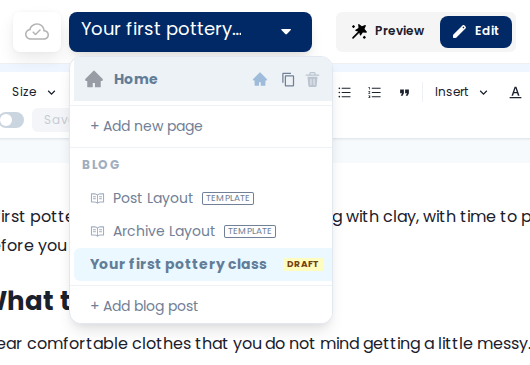
The archive and post layouts contain fields that Siteboon fills with each post's title, excerpt, image, and content. Keep those fields when adjusting the design so the template continues to display your posts.
Change the blog address later
- Open Archive Layout or Post Layout from the page menu.
- Open Page Settings, then its Blog tab.
- Change Blog URL, check the address preview, and select Save.
- Publish the website when you are ready for the new address to take effect. Check links you have shared or added elsewhere.
Write the first post
Your blog is ready when the page menu shows both layouts and a draft post. Continue with Write and publish a blog post to add text and images, set the post details, and make it visible on your website.