Connect Siteboon to an AI assistant that supports remote MCP servers. After signing in and approving access, the assistant can use Siteboon tools for websites you can access. Start by asking it to list your sites.
Before you connect
- Have a Siteboon account with access to the website you want to work on.
- Use the complete server address:
https://mcp.siteboon.ai/mcp. The/mcppath is part of the address. - You do not need a Siteboon API key for this OAuth connection. Sign in to Siteboon in the browser when your client asks.
Connect from Codex CLI
These commands require Codex CLI on your computer. Run codex --version to check that it is installed.
Add the remote server in a terminal:
codex mcp add siteboon --url https://mcp.siteboon.ai/mcpStart the OAuth sign-in:
codex mcp login siteboon --oauth-client-registration dcrSign in to Siteboon, review the access screen, and select Allow access.
Check the configuration with
codex mcp list. In Codex, ask: “List my Siteboon websites.”
If Codex runs in a remote terminal
Use the interactive URL-paste flow:
codex mcp login siteboon --no-browser --oauth-client-registration dcr- Open the authorization URL printed in the terminal in your browser.
- Sign in to Siteboon and select Allow access.
- Copy the complete final address from the browser's address bar, including its query string, and paste it at the terminal's Callback URL prompt. Press Enter. Do this even if the browser shows a localhost connection error.
Wait for Successfully logged in. The callback URL is temporary sign-in information; paste it only into the terminal running your login. If your version does not offer this prompt, update Codex. See the Codex MCP reference for other callback configurations.
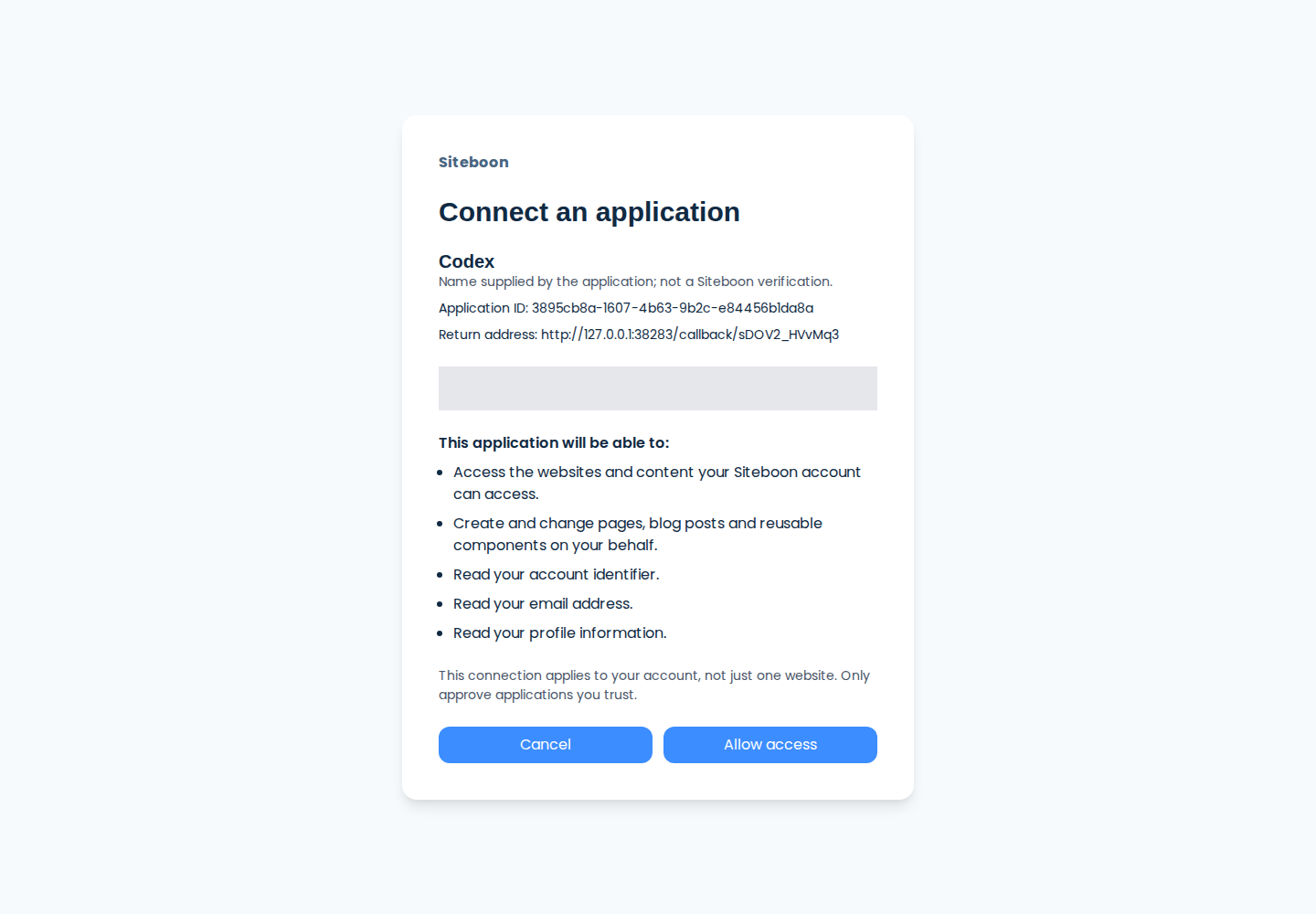
Review the Siteboon access screen
The consent page identifies the application, the signed-in Siteboon account, and the access requested. The connection applies to the websites that account can access. Check the account before selecting Allow access.
Connect from Claude on the web
Individual account
Claude supports custom connectors on Free, Pro, and Max plans. Free accounts are limited to one custom connector. See Claude's connector availability.
- In Claude, open Customize → Connectors.
- Select +, then Add custom connector.
- Name it Siteboon and enter
https://mcp.siteboon.ai/mcpas the remote MCP URL. Leave the advanced OAuth client ID and secret blank; Siteboon supports dynamic client registration. - Select Add, then Connect. Sign in to Siteboon and select Allow access.
- In a Claude conversation, use the + menu to enable the Siteboon connector, then ask it to list your Siteboon sites.
Team or Enterprise account
An organization owner must first add the URL under Organization settings → Connectors → Add → Custom → Web. Each member then opens Customize → Connectors, selects the Siteboon connector, and connects their own Siteboon account. The owner does not need to share a Siteboon API key. See Anthropic’s custom connector instructions.
Connect from Claude Code
Install Claude Code first if claude --version is not available in your terminal.
Add Siteboon as a remote HTTP server:
claude mcp add --transport http siteboon https://mcp.siteboon.ai/mcpThis adds it for the current project by default. Add
--scope userbeforesiteboonif you want it available in every project.Run
claude, then enter/mcp. Select Siteboon and follow the browser sign-in and consent flow.Confirm that Siteboon shows as connected with
claude mcp listor/mcp. Ask Claude to list your Siteboon websites.
Claude Code also supports claude mcp login siteboon from an interactive terminal. On a remote machine without a browser, it prints a sign-in URL and asks you to paste the final redirect URL back into the terminal. See the Claude Code MCP guide for remote sign-in details.
Check access before changing a website
Start with a read-only request such as “List my Siteboon websites.” The list should contain only sites available to the Siteboon account you approved. If a site is missing, check which Siteboon account you signed in with. Before asking an assistant to publish, review its proposed changes: publishing a site can make the latest versions of its pages and published blog posts live.
Connection problems
| What you see | What to check |
|---|---|
| Protected-resource metadata mismatch | Open the server configuration and use the exact URL ending in /mcp, then reconnect. |
| Dynamic client registration error | Use the /mcp URL and leave advanced OAuth credentials blank. In Codex, use the explicit --oauth-client-registration dcr login command above. If it still fails, report the exact error and client version to Siteboon; an API key is not an OAuth client ID. |
| The browser cannot open localhost after consent | With Codex's --no-browser flow, paste the complete callback address into the waiting terminal. Claude Code also provides a callback-URL prompt. |
| Token exchange fails after Allow access | Start a new login and use its new callback URL once. If the failure repeats, record the error and client version for Siteboon support. Do not share the callback URL or token. |
| Connected, but no sites appear | Sign in to the Siteboon account that owns or has access to the site, then reconnect and list sites again. |