Enable Siteboon's form collection to receive enquiries from forms on your website. Collection applies across the site; forms configured to submit to another service through a custom action are excluded.
Enable form collection
- Open the site in the editor.
- Select the gear icon labelled Site Settings in the top toolbar.
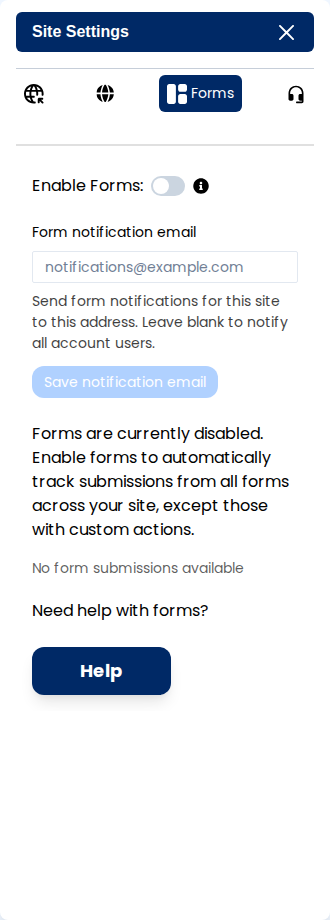
- Open the Forms tab in the right panel. It is the third tab in Site Settings.
- Turn on Enable Forms.
Test the public form
- Confirm that the page contains the form and fields you want visitors to use.
- Publish the website.
- Open the form on your public domain and submit a test enquiry with information you can recognize.
- Return to Site Settings → Forms and check for the submission.
Read submissions
- If the site has submissions from several forms, use Select a form to choose the form ID.
- Select a submission's timestamp to expand it.
- Review the submitted fields. This panel includes forms from all pages in the current site.
Use form notification settings to choose the inbox that receives enquiries.
If a submission is missing
- Check that Enable Forms is on for this site.
- Submit from the published website, then refresh the submissions panel.
- If the form uses a custom action, check the service named in that action; Siteboon does not collect it through this setting.
- Check the selected form ID before concluding that the submission is missing.
The switch applies site-wide. It is not a control for disabling one particular form.