Add a page to an existing website, or copy a page when you want to reuse its layout. Creating a page does not automatically add a link to your website's navigation.
Create a page
- Open your site from Your Sites.
- Open the page-name menu at the top of the editor, then select + Add new page.
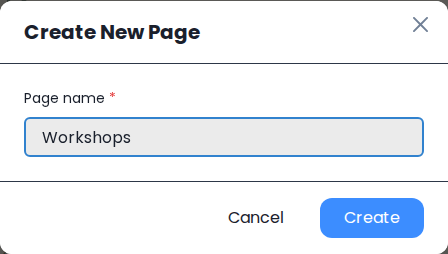
- In Create New Page, enter a Page name, such as Workshops.
- Select Create. Siteboon opens the new page in the editor.
Reuse an existing layout
If another page already has the layout you need, duplicate that page instead of starting a new one.
- Open the page-name menu and locate the page to copy.
- Select its Duplicate control.
- In Clone Page, enter the new page name and confirm the copy.
- Review the copied page and replace its text, images, and links. Changes to the copy do not update the original page.
Add content and a navigation link
- Select Edit to add content with Blocks, or select AI and describe what the new page should contain.
- Open the page that contains your navigation and add a link to the new page. Check any shared header or footer you use across pages.
- Open the new page's SEO settings and give it its own title and description.
Review and publish
- Check the new page in desktop and mobile views.
- Wait for the cloud icon to show All changes saved.
- Publish the website, then open the new page from your public navigation to check the link.